What is Unassigned Traffic in GA4? Causes and Step-by-Step Fix
Seven years in digital marketing has taught me one clear truth: data drives every decision. Without it, marketing strategies quickly become guesswork.
As a senior digital marketing analyst, I’ve worked with businesses across industries and international markets. For much of that time, I relied on Universal Analytics to study website traffic. It was the industry standard, grouping visitors into channels like Organic Search, Direct, Referral, and Social, making it easy to see where traffic came from and which campaigns were working.
Everything changed with Google Analytics 4 (GA4). Its event-based tracking model gives deeper insights into user behavior, but reports, attribution models, and traffic classifications now work differently, creating a learning curve for many marketers.
While auditing GA4 for a UK client, I noticed something unusual: a portion of traffic was labeled “Unassigned.”
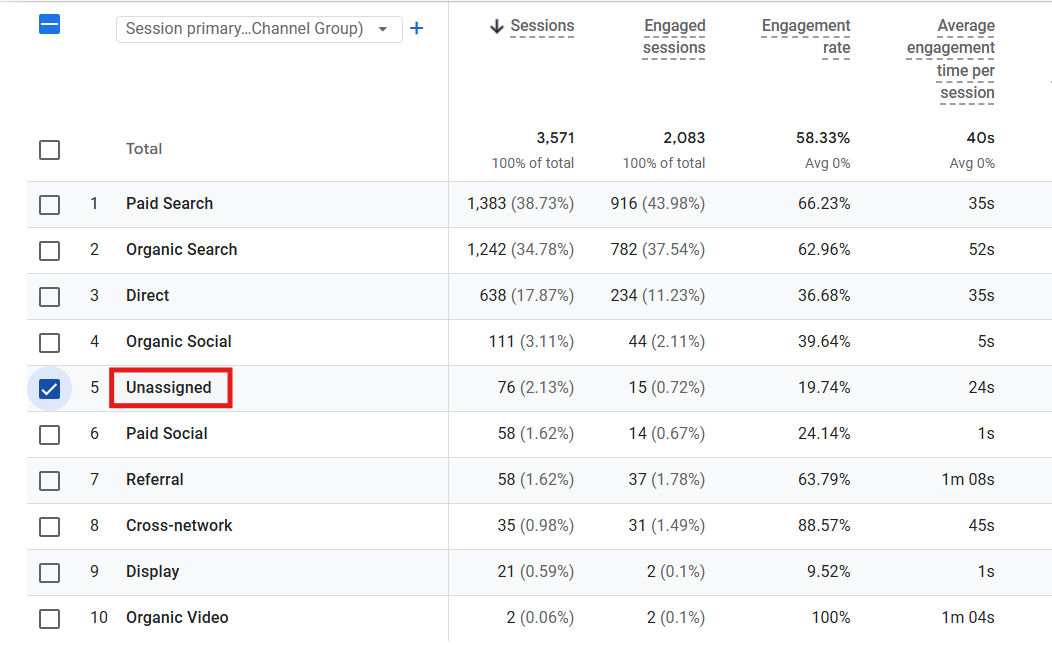
At first, it was confusing. What is it? What does it mean?
This UK-based business ran campaigns through SEO, Google Ads, email, and social media, yet some sessions appeared under the vague category of “unassigned. ”, with no clue where the visitors came from.
For businesses relying on analytics, misclassified traffic can make it harder to evaluate campaigns, allocate budgets, or understand what’s actually working. While I fixed it, I realized many peers were facing the same issue.
To help you decode this digital marketing mystery, I’ve put together a handy guide that breaks down what Unassigned traffic in GA4 really means, why it shows up, and how to fix it without pulling your hair out.
What is “Unassigned” Traffic in GA4?
In Google Analytics 4, user traffic is automatically grouped into defined categories called Default Channel groups. These groups were groundbreaking for me because they made it clear exactly which channels and sources were driving traffic to a website. They include:
- Organic Search
- Direct
- Cross-network
- Affiliate
- SMS
- Mobile Push Notifications
- Organic Shopping
- Paid Shopping
- Organic Social
- Paid Social
- Organic Video
- Paid Video
- Paid Other
- Audio
- Referral
These properly distinguished categories make it easier to evaluate the performance of different marketing activities such as SEO, social media campaigns, paid advertising, or email marketing. However, sometimes GA4 cannot determine the correct source or medium of the incoming traffic. When this happens, the visit is placed under the unassigned category.
In essence, unassigned traffic appears when Google Analytics cannot classify the traffic source correctly into one of its default channel groups. I observed that this often happens when campaigns are tagged incorrectly, tracking parameters are missing or incomplete, or if there are technical issues with the tracking setup.
Where to Find Unassigned Traffic in GA4
If you believe that some of your website traffic is being categorized as unassigned, GA4 makes it relatively easy to locate it within the reports section. Here’s the step-by-step approach I use to locate Unassigned traffic in reports:
Step 1: Open Google Analytics: Log in to your Google Analytics 4 property using your Google account.
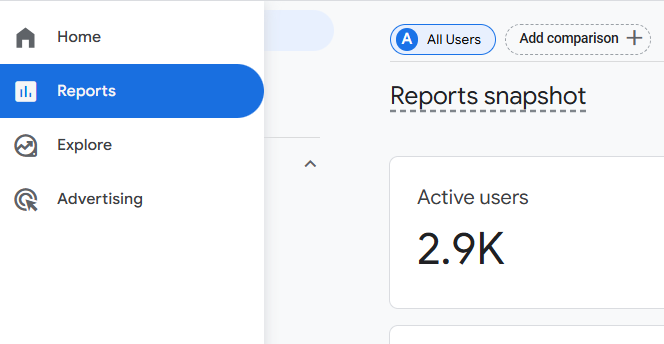
Step 2: Navigate to Reports: From the left-hand navigation menu, click on Reports to access your analytics dashboards.
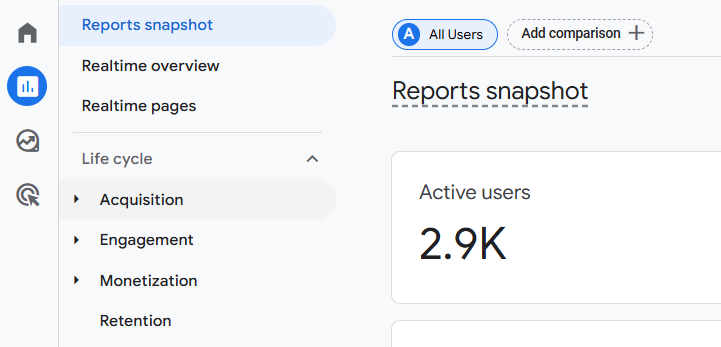
Step 3: Select Acquisition: Within the Reports section, locate and click on Acquisition. This area shows the channels that users use to arrive at your website.
Step 4: Click Traffic Acquisition: Next, select Traffic Acquisition. This report displays traffic sources based on session data.
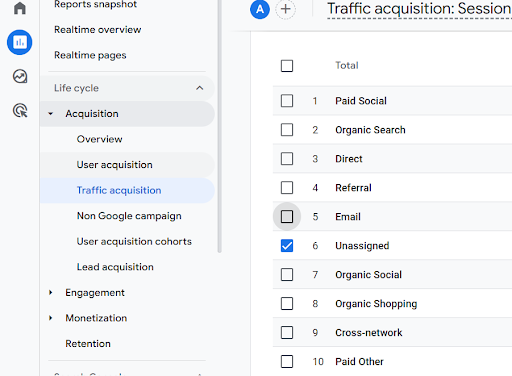
Step 5: Review the Session Default Channel Group: In the table displayed, check the column labeled Session Default Channel Group.
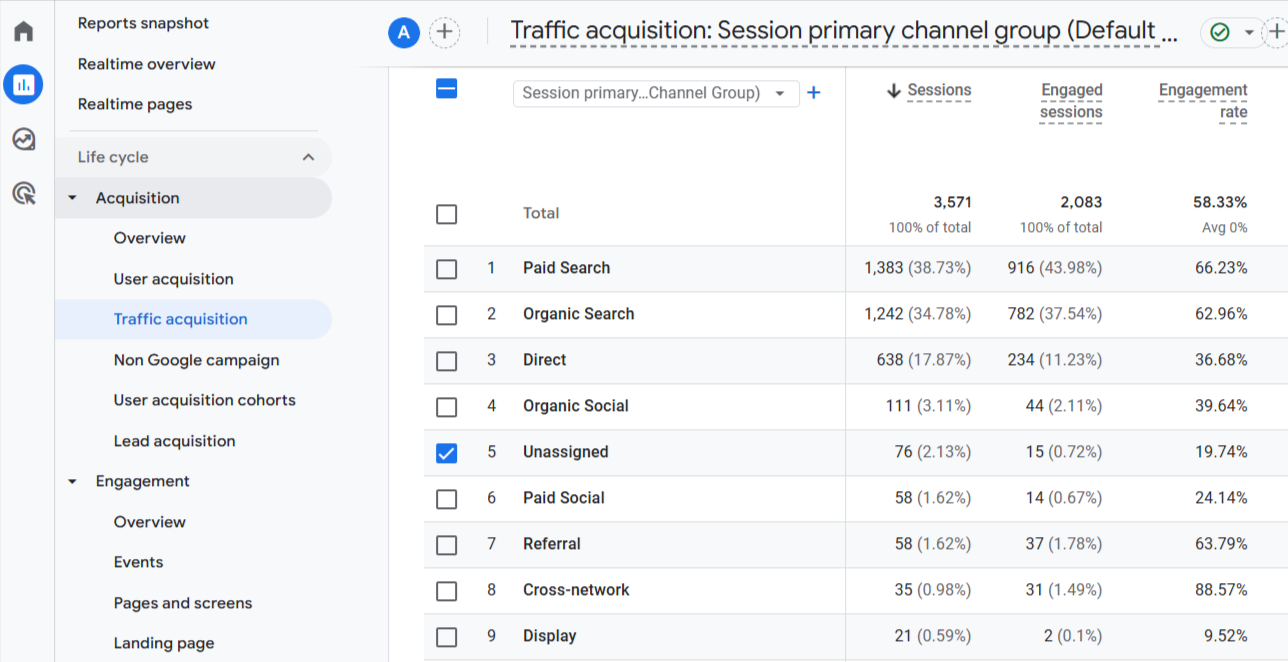
If GA4 cannot categorize certain sessions correctly, those sessions will be listed under the unassigned traffic channel. By reviewing this report regularly, you can identify anomalies in traffic classification and investigate potential issues with tracking or campaign tagging.
Common Causes of Unassigned Traffic in GA4
It is important to understand that the unassigned traffic does not appear randomly. In most cases, it happens because GA4 lacks the necessary information to categorize the user visit properly. Several common tracking mistakes can lead to this issue. We have listed some of the most common causes of unassigned traffic in GA4 with examples:
Missing or Incorrect UTM Parameters
One of the most frequent causes of Unassigned traffic is missing UTM parameters in campaign links. UTM parameters, which are tags added to a URL, help analytics tools identify the source and medium of traffic generated by marketing campaigns. When these parameters are missing, GA4 may struggle to categorize the visit correctly.
Example of a link without campaign tracking:
digitalagencies.uk/software-development
If this link is shared in a newsletter or promotional campaign without UTM parameters, GA4 may not be able to clearly identify the marketing campaign that generated the visit. In some cases, the traffic may be grouped under Direct, or it may not match GA4’s channel rules correctly.
Example with proper UTM parameters:
digitalagencies.uk/software-development/?utm_source=newsletter&utm_medium=email&utm_campaign=spring_sale
With these settings, GA4 can easily tell which source, medium, and campaign brought the visitor. This helps the platform sort the traffic into the right group under the Email channel and connect the session to the right campaign.
Improper Campaign Tagging
Even with UTM parameters, GA4 can still have trouble putting things into the right categories if the values are wrong. The utm_medium parameter is critical because GA4 uses it to determine which channel group the traffic originates from.
Example: utm_medium=promotion
GA4 does not recognize “promotion” as a standard medium. Because of this, the system cannot automatically assign the traffic to a default channel like Email, Paid Search, or Social. As a result, the visit may be categorized as unassigned traffic.
Correct link example: utm_medium=email
Using a standard, recognized medium such as email allows GA4 to correctly classify the traffic under the Email channel. This helps with accurate reporting and the proper attribution of campaign performance.
Custom or Unknown Medium Values
When GA4 assigns traffic to default channel groups, it only recognizes a small number of medium names. If marketers create their own medium values, Google Analytics 4 might not be able to interpret them correctly.
For Example: utm_medium=ads_campaign
GA4 does not recognize “ads_campaign” as a standard medium. Because it’s an unknown value, the platform cannot automatically assign the traffic to one of its default channel groups, such as Paid Search. This situation can result in the visit being labeled unassigned.
The correct example: utm_medium=cpc
Using a standard medium, such as cpc signals to GA4, confirms that this is paid search traffic. As a result, GA4 can automatically group the visit under the Paid Search channel, making your reports accurate and easier to interpret.
Server-Side Tracking Issues
Some businesses use server-side tracking tools to gather analytics data. This method can help with data control and following privacy rules, but it can also cause mistakes if the tracking setup isn't complete.
If server-side implementations fail to send the correct source or medium to GA4, the platform may not have enough data to classify the visit properly. Incomplete or misconfigured data transfers can therefore result in traffic being categorized under the unassigned section.
Incorrect Google Tag Manager Configuration
Another potential cause involves errors in Google Tag Manager (GTM) setups. If GA4 tags are misconfigured or events are fired incorrectly, the tracking system may fail to capture key campaign parameters such as:
- source
- medium
- campaign
When these values are missing, GA4 cannot determine the traffic origin and may assign those sessions to the Unassigned category. Regularly testing and auditing your GTM configuration can help prevent such issues.
How to Fix Unassigned Traffic in GA4
In my experience, once you understand the right reasons for the unassigned traffic, fixing it becomes much easier. The following steps outline practical actions you can take to correct these issues and improve the accuracy of your GA4 reports:
Step 1: Use Proper UTM Parameters
Always include UTM parameters when creating campaign links. These parameters help GA4 understand where the traffic is coming from and how it should be categorized in reports.
The three most important parameters are:
- utm_source: identifies the platform sending traffic
- utm_medium: defines the marketing channel
- utm_campaign: identifies the specific marketing campaign
For example, suppose digitalagencies.uk is promoting its services through a Facebook post.
GA4 might not be able to clearly tell which campaign brought the visitor if you use a link without tracking parameters.
digitalagencies.uk/web-development
However, if the link has proper UTM parameters:
digitalagencies.uk/web-development?utm_source=facebook&utm_medium=social&utm_campaign=agency_camp
With these parameters added, GA4 can clearly identify:
- the source as Facebook
- the medium as Social
- the campaign as agency_camp
This makes it possible to put the visit in the right category in GA4 reports and link it to the right marketing campaign.
Step 2: Use Standard Medium Values
GA4 uses default channel grouping rules to classify traffic based on the value of utm_medium. If a medium value does not match these rules, GA4 may struggle to categorize the traffic correctly. Commonly recognized medium values, such as organic, referral, cpc, email, social, or display.
For example, imagine digitalagencies.uk runs a Google Ads campaign.
digitalagencies.uk/web-development?utm_source=google&utm_medium=ads_campaign&utm_campaign=seo_services
The medium ads_campaign is not part of GA4’s standard channel rules. Because of this, GA4 may not classify the traffic correctly.
digitalagencies.uk/web-development?utm_source=google&utm_medium=cpc&utm_campaign=seo_services
Since cpc is recognized as paid advertising traffic, GA4 can automatically categorize the visit under the Paid Search channel. Using standard medium values makes your acquisition reports easier to interpret and reduces the chances of traffic being labeled Unassigned.
Step 3: Check Google Tag Manager Setup
If digitalagencies.uk uses Google Tag Manager (GTM) to manage analytics tracking, it’s important to verify that the GA4 configuration is working correctly. Several tracking issues can cause traffic data to be incomplete or misclassified. Common things to check include:
- The GA4 configuration tag is firing on every page
- Event tags are set up properly
- UTM parameters are being captured correctly
For example, if a visitor clicks a campaign link like:
digitalagencies.uk/blog?utm_source=linkedin&utm_medium=social&utm_campaign=seo_tips
and the GA4 tag does not fire correctly, the source and medium data may not be recorded. This can lead to inaccurate traffic classification in your reports. Regularly testing your GTM setup can help GA4 receive the data it needs to categorize traffic correctly.
Step 4: Verify Tracking Using DebugView
GA4 includes a built-in tool called DebugView that allows you to test your tracking setup in real time.
You can access it by going to the Admin section and choosing DebugView.
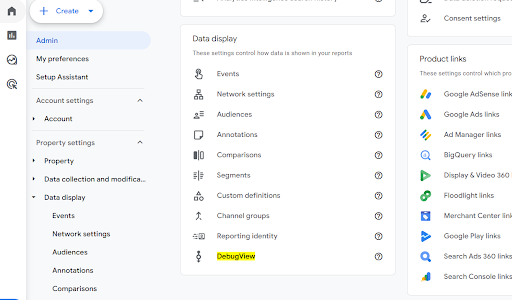
This tool is particularly useful when testing campaign links before launching them. For instance, if you open the following campaign link:
digitalagencies.uk/web-development?utm_source=linkedin&utm_medium=social&utm_campaign=lead_generation
DebugView allows you to confirm that GA4 detects:
- the correct source (LinkedIn)
- the correct medium (Social)
- the correct campaign name
By testing links in DebugView before publishing them in emails, ads, or social media posts, you can identify tracking issues early and prevent traffic from appearing as unassigned in your reports.
Best Practices to Avoid Unassigned Traffic
Maintaining consistent tracking practices can help efficiently prevent unassigned traffic. Here is a practical checklist that can help you enforce this:
- Always add UTM parameters to marketing campaign links: Every campaign link should include UTM tags so GA4 can identify the traffic source and channel correctly.
- Use standard naming conventions for utm_source and utm_medium: Stick to recognized values like Google, Facebook, email, and cpc so GA4 can classify traffic properly.
- Avoid creating unnecessary custom medium values: Using random medium names can prevent GA4 from matching traffic to its default channel groups.
- Test tracking links before launching campaigns: Opening and testing campaign links ensures the parameters are working and being captured correctly.
- Audit Google Tag Manager configurations periodically: Regularly reviewing GTM tags helps confirm that GA4 tracking is firing properly across your website.
- Monitor GA4 acquisition reports regularly: Checking acquisition reports helps you quickly spot unusual spikes in Unassigned traffic.
- Use DebugView to verify tracking after implementation: DebugView lets you confirm in real time that GA4 is receiving the correct source, medium, and campaign data.
Keeping Your GA4 Traffic Data Accurate
As the world becomes more information-centric, maintaining clean analytics data in Google Analytics 4 has become crucial. Consistent campaign tracking, proper UTM usage, and reliable implementation practices are essential for accurate data collection. When traffic sources are not tagged correctly or tracking configurations are incomplete, visits may appear as unassigned, making it harder for marketers to interpret acquisition data and evaluate campaign performance.
By using the right UTM parameters, recognized medium values, and regularly checking tracking with tools like Google Tag Manager and GA4 DebugView, organizations can keep their traffic data accurate and their reports trustworthy. Businesses that follow consistent tracking standards will gain clearer insights into visitor behavior and make more informed marketing decisions based on reliable analytics data.
Related Blog